Showing posts with label Parameters. Show all posts

Monday, July 22, 2013

Revit MEP - Options Affect Parameters

Daniel Stine sent me this subtle issue the other day, thanks! He wrote that it affects 2013 and 2014. If you are using Revit "one box" but customize your user settings so that the Systems tab for electrical is off it will affect your ability to access certain parameter types. Here's the check box I'm referring to.


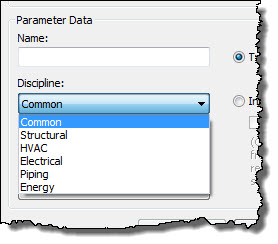
There are normally 21 parameters associated with the Electrical Discipline. If the previous image option for Systems tab:electrical tools is unchecked as shown you'll only get 6 parameters offered instead, like below.


Definitely subtle and a bit quirky. I don't think Revit should restrict this list just because I've said I prefer to not see electrical ribbon features. If you are making Revit content don't restrict the tabs as it might impact what parameters are available to you.

Monday, July 15, 2013

Revit MEP - Free Size Parameter

If you use the Free Size parameter instead of Size you might notice a subtle anomaly.

In elevation views where we only see one dimension of a duct Free Size does not switch between WxH and HxW, the Size parameter does switch. In other views they both display width x height. In section or elevations that show the profile of a duct both dimensions are measurable and each parameter is consistent, they default to Width x Height.


It does seem like an oversight on their part, they ought to be consistent whether we use Size or Free Size.

Wednesday, June 26, 2013

Type Catalogs and MEP Parameter Syntax

The formatting of type catalog parameters has been consistent until the introduction of Revit MEP features. The WikiHelp at Autodesk provides insight into many things but it still doesn't tackle this subtlety yet. It does offer a number of sample entries, all without a bias toward MEP settings however.

The syntax for Common and Structure data types is parameter name##datatype##units
The syntax for MEP engineering data types is parameter name##discipline_datatype##units

MEP focused examples
Apparent Load##ELECTRICAL_APPARENT_POWER##VOLT_AMPERES
Flow##PIPING_FLOW##LITERS_PER_SECOND
Inlet Radius##PIPE_SIZE##MILLIMETERS
Voltage##ELECTRICAL_POTENTIAL##VOLTS

Structure and Common
MyStructuralParameter##FORCE##KIPS
Assembly Code##OTHER##
bf##LENGTH##FEET

Each MEP related parameter type begins with the discipline it is associated with. In other words when you create the parameter in the family which one of the available disciplines did you choose the parameter from?

If you choose from Common or Structural it isn't necessary to specify them first. It seems to only have been added since the introduction of MEP categories. Another subtle difference is that you'll also find that MEP parameters use the underscore (_) instead of spaces between words in both the data type and the units used.

Examine the Discipline and Type of Parameter wording when you create a new parameter. When you are ready to create your own type catalog headers, refer to those again and as a general rule you can type:
  • Your parameter name
  • ##
  • Discipline
  • _ (underscore)
  • Parameter data type (with underscore between words)
  • ##
  • Units (with underscore between words)
When when I'm not sure what the correct format should be, I either open an existing family or create a new one from scratch that uses the parameter type I'm dealing with. Then I use the relatively new Export > Family Types feature to create a type catalog. If Revit makes it then it must be correct? Right? Better still using that feature can be a shortcut in itself, just clean out the extraneous parameters I don't really want to include in the type catalog. I wrote a post recently offering some advice on Working with Type Catalogs.

Monday, June 24, 2013

Pipe Size Parameter Usage

This is pretty subtle, when you try to add a shared parameter directly to a dimension (even to the "radius" in a connector), ie select "add a parameter" instead of selecting from the list available, it will tell you it has to be a 'length' parameter.


If you load the parameter first using the Family Types dialog as a pipe size you can then select it from the list.

Wednesday, June 19, 2013

Conduit Connector Gone Rogue

I created a conduit connector "disc" that let's me attach conduit to any surface. I place the connector and then add conduit, easy. It's based on the other connector families that Revit provides in the library, these:


When I loaded the connector into a project and select it I find a bizarre value offered. I get the same value no matter what size I enter. This image is after trying 3/4", 1", 1.5" and finally 2".


I tried creating the parameter as a Common/Length as well as Electrical/Conduit Size. Doesn't matter...same bizarre result. The connector's size changes when I change the parameter in the Family Types dialog so it works. You can't enter value on screen. Fwiw, it happens to pipe connectors too. I added a pipe connector to a transformer (I know it's probably a bad idea to put water in a transformer, unless it is water cooled?)


Weird, just weird...looks like a bug that needs some squashing!!

Wednesday, May 15, 2013

Associate Family Parameter Button

Hey the little stuff makes me smile, what can I say? This little bugger has been a secretive button for ages and in Revit 2014 it gets real, it has a tool tip now!


Tuesday, May 14, 2013

Working with Type Catalogs

I recently replied to a question about type catalogs at RevitForum with this stream of consciousness set of comments. I thought it made sense to drop them here too since they mostly work outside of that of context too. I have altered (and added) a bit here and there to make more sense outside the context of that conversation. Here we go:

Many people like to use Excel to edit type catalogs though it is not required to do so and I usually don't bother. You can just edit the information in a text editor, Notepad ++ is a cool free one.

A Type Catalog does not technically need all the parameters that are part of the family, only the ones that vary from type to type. Values that are not in the Type Catalog will be passed on to the family from the default family type. For example you could put height, width and depth in the type catalog only if those are the only values that really change for each type. A type catalog can be quite simple to manage (without involving CSV files) when you only include the necessary values.

The new export family types feature is quite nice to make sure you have the parameters and units properly defined, especially for MEP content. It does not put parameters in a logical order, at least not one that I find satisfying. It also exports all the parameters in the family types dialog and I don't always want them all but it is easy to remove the ones I don't need.

A Type Catalog can include instance parameter values, these are the default value assigned to the parameter, the user can still change them once they are in the project, like any other instance parameter.

If 24 inches is a more useful input value than 2'-0" a type catalog will allow that even if the units in the family or project are assigned to feet and fractional inches. Just change the ##units from Feet to Inches.

Earlier I wrote that Excel is not necessary and that I don't usually use it. I do use Excel (and CSV files) to change column order because that IS a lot easier to do with it. A friend says that we can see the "matrix" when we look at the .txt file, so we don't need Excel. I save the work as a CSV file and then change the extension to .TXT. You have to delete the older txt file first. I don't bother to keep the CSV around. If I need a CSV again I just open the TXT type catalog file directly with Excel and set the delimiter options. Revit only cares about the .TXT file so no point confusing others with a pile of "irrelevant" files in the library folder.

I put the parameters (reorder them) that match the family type name in front of the list (first columns) in the catalog in the order of the naming in the type name, like 600H 800W 150D. So 600,800,150 are the very first values after the type name. I only include values that we want to set during loading and put dimensional values before informational values (text).

Related Family Interaction Advice

A family using a type catalog must be loaded properly, either with Load Family while placing a component or via Load from Library, or using a right click > reload in the Project Browser.

Do not use Edit Family (from inside a project) with families that have type catalogs, it puts all the loaded types from the project in the family. A family that has a type catalog really ought to only have one "default" type. Lately I have settled on using the name: "This family uses a Type Catalog". If I find that type in a project I know it has been loaded at least once improperly. That type will never appear in the project if the catalog is used.

Do not use Load into Project while working on the family, it does not look for or offer the type catalog.

Saturday, December 15, 2012

Illegal Parameter Names

It is fairly well understood that we can, but should not, use characters in parameter names that compete with Revit's own calculations. These include the addition (+), subtraction (-), multiplication (*) and division (/) symbols to name a few.

We also need to be careful to not use the specific function names either such IF. IF is the same as iF or If as far as Revit is concerned, though normally it is case sensitive.

When creating parameters use names that are not going to confuse Revit's own mathematical and conditional functions.

Tuesday, December 4, 2012

Associate Family Parameter

I've written about Revit's sneaky buttons in the past (see the three links below). I find the button for the Associate Family Parameter feature particular frustrating.


First of all it's tiny and second it has no tooltip, both of which mean it is not particularly obvious. I find myself wishing for a different way to interact with this concept. I can't say that I have a better solution in mind. I just know that this one feels awkward.

Keep in mind that I'm coming from the point of view of someone who has spent about eighty hours clicking on those tiny buttons about a thousand times recently. There are many tasks in Revit that seem quite fine when you think of them as occasional activities. When you start to think of them as your 9-5 job, doing them over and over and over and over all day almost anything can start to wear on you.

Perhaps a clear cut button on the ribbon that says Associate Family Parameter and opens a dialog that lists the parameters that qualify. Even better perhaps a mapping methodology that allows us to define a series of native parameters and then map them to the nested family or the connector's parameters?

Here's links to three past Sneaky Button posts: POST 1, POST 2, POST 3

Thursday, September 27, 2012

Family Types Dialog - Lock Parameter

This concept showed up a couple releases ago if I recall correctly. I'm referring to this bugger:


The help file says:
    "You can maintain the parametric relationships between labeled dimensions by locking them. To lock a dimension directly in the drawing area, click next to the dimension."
    "When a labeled dimension is locked, all of the associated parameters also lock. This means that as the dimensions are moved in the drawing area, the associated parameters are constrained and the dimension value is preserved."
    "Note: Locked dimensions and their associated parameters cannot be changed in the drawing area. Use the Lock column in the Family Types dialog to change them."
    "When a labeled dimension is unlocked, all of the referenced geometry unlocks and is unconstrained."
    "To lock a labeled dimension from the Family Types dialog
    • Click a dimension in the drawing area.
    • Click Modify | Dimensions tab | Properties panel Family Types.
    • Select Lock to constrain a parameter."
I find that this part isn't true:
    "Note: Locked dimensions and their associated parameters cannot be changed in the drawing area. Use the Lock column in the Family Types dialog to change them."
When I select a dimension string that has been locked I CAN change the value and flex the geometry. What I CAN'T do is drag a reference plane to alter the parameter value "in Canvas". The text is misleading. It sure sounds like I can't alter the parameter at all, except by opening the Family Types dialog.

Another thing that is a bit confusing. In the project environment we can't change the position of elements by selecting a dimension string first and then editing the value. We CAN do that in the family editor. Inconsistent user "feedback" when transitioning to and from. In the project we keep stressing that we must select the element and then edit the dimensions. Exactly the opposite when a parameter is attached to the dimension in the family editor. Uh oh, I just saw a student's head explode...sorry.

    Tuesday, September 11, 2012

    Shared Parameters aka Dictionary

    A Shared Parameter is like a definition and the Shared Parameter file is like a dictionary.

    Consider that a family parameter is confined to a family. It can be seen from within a project but not scheduled or tagged unless it is a built in parameter like those listed under the Identity group (and provided for us by Autodesk).

    Consider that a Project Parameter is part of a project and applied to categories of families so that it can be scheduled, but NOT tagged. Like a Family parameter it is "trapped" there, in the project.

    A shared parameter bridges both trapped conditions, acting as a definition we look up in a dictionary (the shared parameter file). We store our common definitions there so they can be applied in other projects or families. When you create a family or project parameter using a shared parameter (definition from the dictionary) it is really just another parameter but it has expanded possibilities because it is "shared", the data stored with it can be scheduled AND tagged.

    Monday, September 10, 2012

    Parameter Related Post Summary

    Updated August 1, 2013

    Posts from 2005

    (2005) What are parameters and why should I care?
    (2005) Sharing Parameters - An Overview
    (2005) Shared Parameters - Part 3
    (2005) Shared Parameters - Part 4
    (2005) Making a Shared Parameter File
    (2005) When is an Instance really a Type?
    (2005) Ignore Good Advice

    Posts from 2006-2008

    (2006) Walking on Thin Ice
    (2007) Family Editor - Parameter Order
    (2008) Duct Size Parameter - Inches - Revit MEP
    (2008) Dept. of Subtle - Filter Parameter in Tags (really subtle)
    (2008) Shared Parameter File - A Little Clarification
    (2008) Shared Parameter - No you Can't -Yes you Can

    Posts from 2009

    (2009) The Order of Parameters - Revisited
    (2009) Titleblock Parameters
    (2009) Which Group? Choosing a Parameter's Parameter
    (2009) Revit Family Style Guide
    (2009) Titleblock Parameters
    (2009) Dept. of Subtle - Family Editor Parameter and Formula
    (2009) Back to Basics: Mark and Type Mark
    (2009) Dept. of Subtle - Three Parameter Tips?
    (2009) Revit API SDK - AutoParameter

    Posts from 2010

    (2010) Export a Shared Parameter
    (2010) BIM Family Toolkit at Autodesk Labs
    (2010) Dept. of Subtle - Parameter Shuffling
    (2010) Family Editor - Use a Default Type
    (2010) Dept. of Subtle - Omni Class Parameters Missing

    Posts from 2011

    (2011) Parameters Again
    (2011) Parameters Again
    (2011) Dept. of Subtle - Family Editor Parameter Lock
    (2011) Dept. of Echo - Type Catalog Formatting
    (2011) Dept. of Echo - Shared Parameters for Manufacturer
    (2011) Family Type Parameter Gotcha
    (2011) Revit Content Standards - ANZRS
    (2011) Dept. of Subtle - Connectors and Diameter
    (2011) No Math Characters in Parameter Names
    (2011) Family Category and Parameter Dialog
    (2011) Shared Parameter Utility - Revit SP Writer

    Posts from 2012

    (2012) Connecting Parameters
    (2012) Connecting Parameters in Nested Families
    (2012) Pushing Parameters Around
    (2012) Parameter Grouping
    (2012) Shared Parameter Article at AEC Bytes
    (2012) The Shared Parameter File has no Relationships
    (2012) A Small Collection of Family Editor Advice
    (2012) Parameter Pecking Order or Priority
    (2012) Shared Parameter Czar
    (2012) Which Overwrite is Right
    (2012) Shared Parameters aka Dictionary

    Posts from 2013

    (2013) Working with Type Catalogs
    (2013) Associate Family Parameter

    Tuesday, September 4, 2012

    Which Overwrite is Right

    When we reload a family a dialog appears asking us how we'd like to deal with the existing family definition. Technically a more involved dialog can also appear if nested and shared families are involved. The first choice or top most button asks if we just want to overwrite the family. The second choice and next button down asks if we want to also overwrite parameter values.


    So what's the difference? The first button is effectively acknowledging the changed family but preserving values that we may have entered or altered in the project, they may be different from the original family. Said another way the project is correct (the project version of the family). The second button is challenging the version of the family in the project, in effect saying, "You are wrong, we'll fix that!"

    I've seen confusion with this result in uncomfortable changes. For example a standard duplex electrical outlet that is set to 180VA is suddenly reporting 360VA. A user changed the default value for a heavy duty type but accidentally assigned it to the standard type too. A reload with "choice two" ends up creating some confusion, replacing the correct values with the new higher value. This kind of change should have been done with the "first choice".

    On the other hand, if the user had changed the type value in the project we could easily fix the mistake with "choice two".

    When reloading families pause long enough to consider the options carefully. Often the best answer (or safest) is the uppermost button.

    Friday, August 31, 2012

    Linked Files have Instance and Type Workset

    Linked files are assigned to the active workset, when worksets are in use naturally. When you select the link you can see the Workset parameter in the Properties Palette. Less obvious is that they also have a Type Property called, you guessed it, Workset. This can trip you up when you are trying alter visibilty graphics because they need to match.

    The reason they have both is that the Type Parameter is for the definition of the link in the database and the instance parameter is for the actual link. There is a row in the Visibility Graphics dialog for each link as well as a single row beneath it for each instance of the link.

    I say each instance because a link can be copied. If you import a file it is both the definition and the instance. If you copy it and put the second instance elsewhere you'll see that another row will appear beneath the first one and both will be under the primary entry. This is done to make it possible to alter each instance of the same linked file differently via Visibilty Graphics.

    Experiencing control issues with a link? Remember to check the workset assignments.

    Friday, April 6, 2012

    Reference Plane IsReference Parameter

    This post reiterates concepts I wrote about many years ago, regarding the IsReference parameter assigned to Reference Planes. The last post was titled "Is you Is or Is You Ain't", paying homage to Louis Jordan's tune.

    IsReference settings break down like this:
      Not a Reference - ignored by Revit in the project environment, still useful in a family to create "the bones".
      Weak Reference - Seen in Project by dimensions, align tool, Revit favors Strong over Weak
      Strong Reference - Seen in project by dimensions, align tool and Revit sees these first. (the black lines you see during dimensioning or using the align tool are the weak and strong references in action)

    The nice IsReference names like Right, Left, Top, Bottom are all Strong IsReference choices. A reference plane should be named so it is clear why it was created, to you and anyone else later. Programmers comment their code, as much to help them remember why they did what they did as well as what the code is supposed to do. Same concept for these reference planes properties.

    The names don't have to match but if the nice names do match what you think they should be, then great. If your families are meant to be interchangeable for other families, like from the stock library you should examine them to see how they are done. I've seen doors that were built opposite when compared with stock Revit doors and when users swap a stock door for theirs, the door panel flips over...ouch.

    When Weak and Strong references are combined with instance parameters you see grips in the project environment. You can drag the grip to alter the family dynamically. If you use the Align tool on a weak reference the family "moves" toward the alignment edge. If you use the Align tool on a Strong reference the family "stretches" instead.

    Last, these help Revit maintain orientation and two intersecting reference planes can define the X/Y origin. One reference plane in elevation can define a vertical origin. Theoretically a reversal of Right and Left reference planes in two different families would flip their orientation if exchanged for one another. Haven't tried that in a really long time so I don't know for sure that condition still exists.

    Not finished apparently. Alex quite rightly reminded me in a comment that I forgot a goody! So he wrote:
      "Another advantage of naming your reference planes using the preset Named Planes is that in a project, it will allow you to pick on the dimension grip and bounce between the Left, Right, and Centre options and ditto (depending on orientation) for Front and Rear, Top and Bottom."

    Saturday, March 31, 2012

    Wishlist - Families and Hide at Scales Coarser Than

    A casual post at AUGI asked if it is possible to connect a parameter to the Hide at Scales Coarser Than behavior that the annotation for sections and elevations have. This lets us chose a scale (threshold) where the annotation won't display below. It makes it easier to keep certain sections (details/wall sections) and elevations (interior) off of overall floor plan views for example.

    Imagine if we could assign this behavior to a family? Nested annotation could be assigned much more effectively because we could design them to only show up at the minimum appropriate scale. Combine this with the Detail Level concept and we'd have even more granular control over the information and geometry in a family.

    Related to this is the notion that there are representations that we'd like to control for floor plan orientation and offer a different appear for the reflected ceiling plan (RCP) version. Currently what we show in plan will show the same in the RCP. That's just not specific or granular enough control.

    Well, we can keep wishing...and hoping...and wishing...

    Friday, March 16, 2012

    Can't Change a Parameter from Type to Instance

    A re-post of something I wrote back in 2005, sometimes the oldies just don't get old.

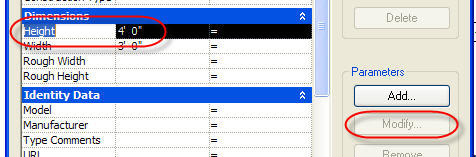
    Family editor tip: When you have a Type parameter that you can’t change to Instance in the Family Types dialog box because the modify button is inactive...(meaning it is a stock "factory" parameter)


    Don’t fret! Close the dialog box, select a dimension that is assigned to the parameter and take a look at the Options Bar.


    Notice the check box next to Instance Parameter? There you go! Thanks to Steven Campbell for the wake up call! Sometimes the answer is as plain as the nose on your face!

    Wednesday, March 7, 2012

    Connecting Parameters in Nested Families

    It's a fairly common situation - you create a nested family (child) and load it into a host (parent) but the parameters in the child don't seem to respond to the parents. If you've got kids that's not so shocking? Children not listening to parents?

    You've got to "connect the dots" to get it to work. It might seem a bit obtuse but you have to "do the work over" in the host family to be able to flex or fill out a parameter in the nested "child" family. The image below shows a nested Type Parameter getting connected to the host's version.


    It isn't necessary to name the parameters exactly the same but it might help keep things straight.

    I created a brief VIDEO that points out where this happens plus a little bonus tip on replacing nested content. Don't load the new family, replace and remove the old family...just reload the existing one from the new different version instead. That way you won't forget to remove the unused nested family.


    Thursday, February 9, 2012

    Pushing Parameters Around

    Alternate title, "Getting What I Want"

    I wanted to show a parameter for Mounting Height. I needed it assigned to a variety of elements. This isn't hard for families that are not hosted. Face-based families on the other hand seem to know what their "Elevation" value is but they are uninterested in sharing that data with a schedule. It's just not listed in the Available Fields list. Mean Revit!

    This is a story of a white knight coming to the rescue, or rather Whitefeet coming to the rescue.


    Obviously not the cat, I must mean the tools that Mario Guttman has made available to us via his alter ego "Whitefeet Tools". To get what I wanted I created a shared parameter called Mounting Height and added it to my project. For this post and this example I've assigned it to the cateory Data Devices. Once that's in place the steps are pretty easy (apart from getting the tool installed).

    You either select all the devices first or just tell the tool to apply it to everything in the model. You start by running the Parameter Tools.


    Next you click the Math Calculation button.


    Now you've got to fill in some blanks and click a button.


    When your information matches the image (change the category appropriately, I show Security Devices for example, Obviously this picture and the next one don't sync up, taken at different times).

    Once the routine runs you can close the open dialog boxes and check the results. Cool eh?


    Want to watch a video?


    Friday, January 27, 2012

    Parameter Grouping

    Consistency, CONSISTENCY, consistency...

    This post is the result of noticing that families that were using a specific group for some parameters were not showing up in the correct group once they were added to a project.

    When you create content the names you use for parameters is one thing to worry about. The Group you assign them to is yet another. We don't get much control over how we present parameters to our users, but Groups are one thing we do get some say about. We can even change them without starting over, compared with getting the parameter name or data type wrong.

    If you'd like all your content to show the same grouping you'd better be consistent. Then again even if you are you may not get your way though. I should explain myself now?

    Here's a parameter called "Mounting Elevation". It's neatly tucked away in the "Construction" group.


      Curious about why I'm using Mounting Elevation when you can clearly see Default Elevation just above it? I can't tag something with the Default Elevation parameter (Data Devices in this situation), it's not among the parameters available in a tag family. I'm using a shared parameter for Mounting Elevation and "connecting the dots" with a formula that is equal to Default Elevation.

    I loaded it into a project and all is well. A bit later I notice this. The parameter has wandered into a new group called "Dimensions". Hmmm...


    I went back to the beginning, just like Vezzini told Inigo he should. I started with a blank project template and a single family. I added a shared parameter for "Mounting Height" and assigned it to the "Construction" group. Parameter showed up as expected. I went back to the family and tried to change the group to something else. Loaded back into the project, no respect...parameter still located under "Construction". Apparently once the project captured the group, it stuck, even if I change it in the family and reload it.

    Next I tried adding a second family that used the same shared parameter but assigned to a different group, no change. Still assigned to the original group. Hmmm... So how did the parameter move?? I started to think that maybe I assigned the parameter to the other group originally and later decided to use "Construction" instead. That was so hours ago, don't really remember now. Just not sure anymore.

    Let's mix it up a little with Project Parameters. When you use a shared parameter in your family Revit is kind enough to make them available in schedules without doing anything extra (except for titleblock families, they are a special case). I thought I'd try adding the same parameter to the project and assign it to the group I really wanted. Aaah... the parameter moved to the group I wanted!


    If I edit the Project Parameter and change it again it moves to the new group. Well that's consistent at least.


    Fire Protection probably isn't the best group to use though eh? My lesson learned from this fun is to think a bit harder about the groups I want to use earlier and to be really sure I'm happy with the setup before putting it in a real project. If I don't I'll either have to live with it or just add the parameter to the project too (which isn't really a hardship even if it isn't technically necessary).