Want to save time in Navisworks when it comes to selection sets? Try exporting select views of the model to establish ready made "selection sets". We've already got natural organization with categories, worksets and filters doing some heavy lifting in our project. If we export several NWC files with just things like all the plumbing, HVAC, furniture, fin tube radiation, medical equipment, and so on, we'll have separate ready-made selection sets. Further finer grain selections can then be made by focusing on the separate files within Navisworks, if it's even necessary.
Sure that's what Navisworks is good at, selecting and searching for criteria but things are already pretty organized in a Revit model. Seems a waste of time to export a big pile only to want to break it down into smaller piles inside Navisworks? Want to run slash detection on pipes and ducts, just pick the two separate files as soon as they are loaded. If information doesn't get sent to us like this, we can just ask. If it still doesn't then we've still got Navisworks search ans selection sets in our back pocket.
Thursday, February 23, 2012

Wednesday, February 22, 2012
Placing Based Content Tips
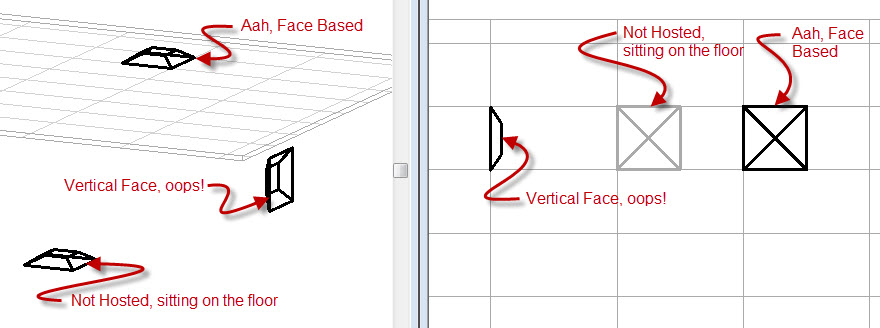
This happens very often, probably more often in RME than others though. Select a face-based component to put in the model, start clicking away and then realize that it isn't hosted like you hoped it would be. Face-based families cannot be preset to prefer a certain face. Revit will decide that a Vertical Face is what you want by default. You have to remember to change it to one of the other two choices, Face or Workplane. It would be GREAT if we could preset a preference, not yet however.
Regular content, like a desk or a chair, doesn't offer a choice unless they have been changed to be Work-plane based. If that's happened then you get a choice between a Face and Workplane, like below.

You need to be careful with those choices if you have linked Revit models. The Face that Revit finds may be something in the link instead of the Level of your host project. If you select a family and find the associated work plane shows a linked project file you've got some "fixin" to do. Not hard to fix, just click the Edit Workplane button and choose the intended workplane, such as the Level it is on.
Face-based families offer you three choices and Vertical is the default one you'll get.

Placing content you have to be vigilant and notice which kind you are dealing with. If you don't change it you might get something like this, where your air terminal is hosted on the Vertical Face, or in as in the image below on the "vertical face" of the ceiling grid, uh oh!

Regular content, like a desk or a chair, doesn't offer a choice unless they have been changed to be Work-plane based. If that's happened then you get a choice between a Face and Workplane, like below.

You need to be careful with those choices if you have linked Revit models. The Face that Revit finds may be something in the link instead of the Level of your host project. If you select a family and find the associated work plane shows a linked project file you've got some "fixin" to do. Not hard to fix, just click the Edit Workplane button and choose the intended workplane, such as the Level it is on.
Face-based families offer you three choices and Vertical is the default one you'll get.

Placing content you have to be vigilant and notice which kind you are dealing with. If you don't change it you might get something like this, where your air terminal is hosted on the Vertical Face, or in as in the image below on the "vertical face" of the ceiling grid, uh oh!
Tuesday, February 21, 2012
The Big R is Puzzling me with Poor Performance
I've got a recurring issue, since about December that is. I did some extended work for a client and we set things up so I could have access to resources without actually joining their domain (adding my PC to their network formally). I've done this for years but I haven't experienced this however.
When I click on the Big R (application button), to start a new project or open something, I have to wait as long as 60 seconds sometimes before it expands to display the menu. I've been primarily using Revit MEP but occasionally Revit Architecture too. They both exhibit the same sluggishness response to using the Big R. Revit Structure 2012 doesn't seem to be suffering from this however. Also if I just click the Open icon on the Quick Access Bar there is no delay. None of the Revit 2011 versions seem to be bothered by it either but I didn't use them during the last couple months either.
Some additional clues are:
Was connected to shared resources (drives and printers) without being added to the domain
Was using a Named Network Location (not a mapped network drive)
Have since deleted journal file data
Have since removed all Places referencing these shares
Have removed the shared printers
Removed references to invalid locations in Revit.ini files (main and user)
Removed CMDKEY stored information related to past external resources
Have done registry cleaning for references to the past network locations
Have removed the most recent installed external applications
Have a certain version of Revit installed that isn't supposed to be installed side-by-side
With all that in mind, when I revisited my .ini files tonight I removed all references to recent files and the performance is back to normal for now.
Any readers also experiencing similar sluggishness? Resolved it? Lemmeno
When I click on the Big R (application button), to start a new project or open something, I have to wait as long as 60 seconds sometimes before it expands to display the menu. I've been primarily using Revit MEP but occasionally Revit Architecture too. They both exhibit the same sluggishness response to using the Big R. Revit Structure 2012 doesn't seem to be suffering from this however. Also if I just click the Open icon on the Quick Access Bar there is no delay. None of the Revit 2011 versions seem to be bothered by it either but I didn't use them during the last couple months either.
Some additional clues are:
Was connected to shared resources (drives and printers) without being added to the domain
Was using a Named Network Location (not a mapped network drive)
Have since deleted journal file data
Have since removed all Places referencing these shares
Have removed the shared printers
Removed references to invalid locations in Revit.ini files (main and user)
Removed CMDKEY stored information related to past external resources
Have done registry cleaning for references to the past network locations
Have removed the most recent installed external applications
Have a certain version of Revit installed that isn't supposed to be installed side-by-side
With all that in mind, when I revisited my .ini files tonight I removed all references to recent files and the performance is back to normal for now.
Any readers also experiencing similar sluggishness? Resolved it? Lemmeno
Monday, February 20, 2012
Revit Equipment in Action
Just a little unsolicited plug for a friend's work in Revit. Who says Revit equipment families can't be "sexy"? :) Nice work Taylor!
RTC AUS VISDay - Something New
If you have been watching the The Revit Technology Conference site (for Australia) you probably noticed that it is introducing a special additional day, the day before) called RTC VisDay.


The current roster of speakers is: Scott Ballis (Atomic 3D Pty Ltd), Daniel Flood (FloodSlicer), Pat Carmichael (HKS, Inc.), Phil Read (M-SIX) and more to come.
It's scheduled for Wednesday May 23rd, 2012 (the day before RTC begins) and runs from 8:00 AM to 5:30 PM.
Check out the site to see if it is for you!
- The inaugural RTC Visualisation Day is an adjunct to the Revit Technology Conference, dedicated to best-of-breed visualisation technologies and methodologies. It will be held immediately preceding RTC 2012 Australasia. It recognises the unique attributes of visualisation as a process, and the skills of those in the industry. We are proud to have secured some industry heavyweights to share their knowledge and to support an open dialogue in an intimate environment - similar to established RTC events generally. Come and learn from some of the industry's best, from Australasia and abroad.
The current roster of speakers is: Scott Ballis (Atomic 3D Pty Ltd), Daniel Flood (FloodSlicer), Pat Carmichael (HKS, Inc.), Phil Read (M-SIX) and more to come.
It's scheduled for Wednesday May 23rd, 2012 (the day before RTC begins) and runs from 8:00 AM to 5:30 PM.
Check out the site to see if it is for you!
Thursday, February 16, 2012
Clarity for Revit Server
Joe wrote a post on the IMAGINiT blog last night regarding a new product that I first heard rumors about at Autodesk University 2011. It says in the post that there will be a demo at BIM Spectrum today (It's a virtual event so you can attend - 10:30 AM - 5:00 PM EST).
Here's the text of the post...
Clarity for Autodesk Revit Server
Well, it's out now... what started as an idea and grew into something that captured all sorts of attention at Autodesk University has now become a real offering from IMAGINiT!
As is mentioned on our Clarity news release:
IMAGINiT Technologies has released IMAGINiT Clarity for Autodesk® Revit® Server. This web-based solution from the same IMAGINiT software development team who created Scan to BIM was built specifically to enhance the Autodesk Revit Server platform. IMAGINiT Clarity allows team members and external partners to share one centrally located BIM model securely from multiple locations.
It's first public presentation will be at BIM Spectrum tomorrow, and more information from our news release can be found for your viewing pleasure here
The full product page with even more information can be found here
This is the video embedded on their site. I heard nice things about it at AU...looking forward to learning more about it.
Here's the text of the post...
Clarity for Autodesk Revit Server
Well, it's out now... what started as an idea and grew into something that captured all sorts of attention at Autodesk University has now become a real offering from IMAGINiT!
As is mentioned on our Clarity news release:
IMAGINiT Technologies has released IMAGINiT Clarity for Autodesk® Revit® Server. This web-based solution from the same IMAGINiT software development team who created Scan to BIM was built specifically to enhance the Autodesk Revit Server platform. IMAGINiT Clarity allows team members and external partners to share one centrally located BIM model securely from multiple locations.
It's first public presentation will be at BIM Spectrum tomorrow, and more information from our news release can be found for your viewing pleasure here
The full product page with even more information can be found here
This is the video embedded on their site. I heard nice things about it at AU...looking forward to learning more about it.
Wednesday, February 15, 2012
Keynotes - Files, Tags and Legends
Here are a few quirky "gotcha" items you can encounter when you get serious about using the keynoting tools.
If you apply User Keynotes and then change the number values (the Key Value parameter) for them in your keynote file they don't change in the Revit project to reflect the new numbers, even after you Reload the file. That strikes me as undesirable but I believe I understand why. There is no GUID to keep track of. I'm wrong, actually there is one, it's the Key Value parameter but it isn't effective as one. When you change it...Revit can no longer reference it in the project. In order for Revit to update the Key Value too there would need to be a separate GUID (that we can't change), so it could keep track of them.
When this happens Revit keeps the old value intact. You'll have to select the keynote tag and redirect it to the correct value. You can also type in the correct value in the Properties Palette. Yet another way to manage this issue (in a project) is to have a master User Keynote legend (drafting or legend view). Place an array of a small detail component (not grouped and associated though) and apply each User Keynote to them so you end up with one keynote for each unique one you plan to use throughout the project. This view serves as your master "fixer" view. You can go through them all in this one view and fix any that need to be updated. All the others that have been placed throughout the project will inherit the change...change in one place...changes it everywhere else, phew.
Yet another item is that keynote tags that are in Legend Views aren't included (selected) when you use the Select all Instances option In Entire project.

If, for some reason, you decide you want to use that to delete all the keynotes you won't get the ones in Legend views. You'll have to open those views to track down any refugees. If you want to test it out yourself just add some keynotes to elements in the project. Also add a keynote to something in a legend view. Go back to the other project view(s), right click on a keynote tag and use Select all Instances - In Entire Project, then Delete them. Now visit the project browser and try to delete the keynote tag there. You'll get an error message telling you there is still a keynote tag in the project, like this message.

Unsolicited plug, if you do anything with keynotes at all, are you using Steve Faust's Keynote Manager (Revolution Design)? Why not? I really can't imagine spending any time dealing with keynotes without it, seriously.

Seriously nice little application. I should mention it supports multi-user editing and it creates backup files. That saved me and my recent client some heartache a few weeks ago. A quick search of the backups and back in business we were.
If you apply User Keynotes and then change the number values (the Key Value parameter) for them in your keynote file they don't change in the Revit project to reflect the new numbers, even after you Reload the file. That strikes me as undesirable but I believe I understand why. There is no GUID to keep track of. I'm wrong, actually there is one, it's the Key Value parameter but it isn't effective as one. When you change it...Revit can no longer reference it in the project. In order for Revit to update the Key Value too there would need to be a separate GUID (that we can't change), so it could keep track of them.
When this happens Revit keeps the old value intact. You'll have to select the keynote tag and redirect it to the correct value. You can also type in the correct value in the Properties Palette. Yet another way to manage this issue (in a project) is to have a master User Keynote legend (drafting or legend view). Place an array of a small detail component (not grouped and associated though) and apply each User Keynote to them so you end up with one keynote for each unique one you plan to use throughout the project. This view serves as your master "fixer" view. You can go through them all in this one view and fix any that need to be updated. All the others that have been placed throughout the project will inherit the change...change in one place...changes it everywhere else, phew.
- Does that make sense? How or why would this even happen? Need a practical example? Let's say you create your own keynotes for architectural finishes that use the numbering scheme A200 and there are values that run from A201-225. You apply keynotes to a lot of stuff. During a design review the project manager decides that we should revise our existing A200 series to AW200 (wood finishes) and create a new AM200 series for metal finishes. Never question the pm :)
When you renumber the A200 series and reload the keynote file into the project the existing numbers in the keynote tags don't change. If you click on the tag and then the keynote value Revit will open the keynote file but it won't expand the list to show it is associated with the correct keynote, you'll have to do that. As I mentioned before you can just select the keynote tag and in the properties palette type in the new value, inserting the new "W" in the number. That will fix it and when you open the keynote file to check it will work correctly. Not a big deal for one or two or ten. Hundreds is another story.
Yet another item is that keynote tags that are in Legend Views aren't included (selected) when you use the Select all Instances option In Entire project.

If, for some reason, you decide you want to use that to delete all the keynotes you won't get the ones in Legend views. You'll have to open those views to track down any refugees. If you want to test it out yourself just add some keynotes to elements in the project. Also add a keynote to something in a legend view. Go back to the other project view(s), right click on a keynote tag and use Select all Instances - In Entire Project, then Delete them. Now visit the project browser and try to delete the keynote tag there. You'll get an error message telling you there is still a keynote tag in the project, like this message.

Unsolicited plug, if you do anything with keynotes at all, are you using Steve Faust's Keynote Manager (Revolution Design)? Why not? I really can't imagine spending any time dealing with keynotes without it, seriously.

Seriously nice little application. I should mention it supports multi-user editing and it creates backup files. That saved me and my recent client some heartache a few weeks ago. A quick search of the backups and back in business we were.
Subscribe to:
Posts (Atom)