Friday, April 13, 2012

Seek and Ye May Still Not Find

...may not find "Contentment"...

In the continuing disappointment that is Seek, please stop making it so easy to pick on you. This is the tale of a lowly pipe fitting, a vent cap. It was encouraging when I typed the criteria "Vent Cap" and it returned one result and it matched!


I downloaded the bugger right quick. Loaded it into the project and was met with "nope you can't use this fitting Steve" messages whichever way I tried to use it. I took a closer look at the family. Oh, it's looking for a lookup table file called SV-159.csv. Funny, Seek didn't offer me that (note above image again).

The fitting is from Charlotte so I wandered over to their site and found their original version.


I downloaded the zip file that contains these files.


I put the .csv file in the Lookup Table folder, still no joy. Turns out that there is an error in the family, how the revolve is defined. While editing the family, when I try flexing the diameter I get this error message.


When I look more closely at the revolve the axis and the sketch is just slightly past the Center (Right/Left) Reference Plane.


Move it over every so slightly and test, it works. Really subtle. So a novice Revit MEP user's experience with this family? It was a pain in the butt to track down for me...and I've got a few years experience under my belt. If this was a 1:100 experience I wouldn't even bother to mention it. It isn't. :(

Thursday, April 12, 2012

Revit Extensions for Revit 2013 Posted

The Revit Clinic mentioned today that these extensions have been posted for the latest version of Revit 2013.
  • Globe Link for Autodesk Revit 2013
  • Batch Print for Autodesk Revit 2013
  • Worksharing Monitor for Autodesk Revit 2013
  • Autodesk Revit Model Review 2013
  • Autodesk Revit DB Link 2013
  • Space Naming Utility for Autodesk Revit MEP 2013
I need some Ibuprofen, the Space Naming Utility is still an extension? Silliness... What is this AutoCAD's precious Express Tools all over again?? This one should have been burned into native Revit the very following release but here we are three releases later now???

Content via Revit Furniture

Revit Furniture is another venture focused on making Revit content. They recently wrote to me offering some tips to getting quality renderings. One of the tips involves using higher quality entourage and furniture...surprised? Nah, I didn't think so. Here's the tips:
  • Camera location – You will notice that in professional design magazines most interior shots are taken at an angle from one corner of the room to the other corner. This makes the space look grand and shows as much of the room as possible.
  • Lighting – Photographers call the first and last four hours of the sunlight the golden hours. This is because light is softer (more diffuse), warmer in hue, and casts longer shadows. Be sure to adjust your sunlight to the appropriate time in order to make your images shine.
  • Entourage - Renderings with boring, unrealistic or minimal furniture/entourage can come across as unprofessional, plain, and uninspiring. Use entourage to tell a story and liven up your image. High quality furniture and entourage can instantly add value to your space, and make the rendering look more realistic, attractive, and inspiring.
  • Photoshop – After exporting your image bring the file into Photoshop for some final adjustments. Play with individual adjustment to find the best setting. Sometimes the default setting is the best. The adjustment you need to tweak with are: Brightness/Contrast, Auto Contrast, Auto Levels, and Curves. Play with each one of these located under Image > Adjustments to fit to your liking and aesthetic. Another hint – ALWAYS Photoshop people into your renderings!
Someone once told me that all good renderings are taken from about knee level looking up. Agree? I'm not sure any such claim as "all anything" is reliable. I do know that a fair number of compelling images I've seen since do seem to be from lower than eye level. As for the Entourage focus, a sure give away that a image is a rendering is the lack of messiness. The telephone cord, a pen and note pad on the counter, a garbage can...the stuff of life. If your rendering includes such subtle things it will be much more believable, convincing. Beauty is in the eye of the beholder though.

Revit Furniture's approach is dedicated to providing consistent high quality Revit families at a low price of $.99 that they say will never change. Their priorities are content creation and rendering. They currently offer a variety of chairs, sofas, couches, tables, beds, fans, lights, dining-ware, vases, wall accessories and a dynamic flexible outdoor pergola.

They've been offering this free Barcelona chair on their site.


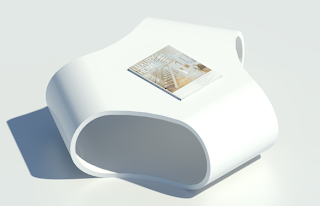
They are offering readers of this blog (in exchange for me writing about them) an extra free family. At $0.99 it might not seem too intimidating to download something anyway? If you are interested in this modern table and magazine family, EMAIL me and I can send you the link and code.


Wednesday, April 11, 2012

RTC USA Registration - Hurry Up!

The next 25 people that register for RTCUSA 2012 will be able to choose a registration prize from a selection of books and videos. Go HERE to learn more if getting a book or video is an added incentive to lock in your spot now?

Wall Floor Interaction and Linked Models

When we have architecture and structure in separate Revit models we end up with somewhat clumsy graphics in wall sections. This is more pronounced if the structural slab is in the structure model only. It could look like this.


The wall continues past the floor as if it isn't there. One possible solution that allows us to keep the structural slab in the separate file and avoids the copy/monitor scenario is to place a Reveal on the interior side of the wall. The profile needs to be equivalent in size to the slab thickness and the wall thickness (inside surface plus however far the slab extends toward the exterior). This approach creates a bit better result.


I should mention that this works the other direction too, since the reveal is part of the wall it will leave a "hollow" space for the structural model's floor slab to occupy.

Tuesday, April 10, 2012

Finish and Cancel Inequity

In the past Aaron Maller and I have had long conversations that oddly enough focus on Revit. He mentioned the inconsistency between the way some elements that are sketch based are finished and the way shape editing for floors and roofs finish. He recently reminded me of it, for example he put forth this list.

Floor, roof, stair or ramp Sketch Creation = Finish and Cancel
Edit Profile = Finish and Cancel
Model Groups = Finish and Cancel

Floor or roof Shape Editing = Accidentally hitting the escape key and getting kicked out of it. We are supposed to click the Modify button to finish Shape Editing.

It would be great if Shape Editing were consistent with the others!!

Monday, April 9, 2012

A Small Collection of Family Editor Advice

I included the following tips and advice (edited a little in this version) in a door tutorial I wrote for my Autodesk University 2005 lab called "Autodesk Revit Building Family Editor: From the Beginning". It wasn't necessarily a really better door as it was a chance to explore a number of different techniques using the family editor. Such as nesting families, Variable swing features 2d/3d, Alignment for adjacent walls and creating a variable multi-lite panel. You can download the PDF HERE.

General Advice and tips
  1. Use snaps and snap overrides
  2. With dimensions and align/lock make sure you select the correct element, as a reference, that you intended.
  3. Use temporary hide/isolate to make sure only the objects you want to reference are visible.
  4. Alter dimension style(s) so it/they work(s) better for laying out your family, remove extension line offset, decrease text size etc.
  5. Dimension only to reference planes, align/lock solids/voids to reference planes
  6. If you ignore #5, don’t do both “inside the sketch” and “outside the sketch”
  7. Don't move the "origin", check the location of the origin by importing a dwg with linework representing 0,0, and use “Origin to Origin” if you think you did. A little background, if you move the reference planes defining the origin you will think the placement origin is moved. In fact the reference planes don't really define the origin anymore because Revit maintains the original origin is actual the internal 0,0 for placement. [This was a bug and has supposedly been fixed in the releases following 2005.]
  8. Don't use "-" in parameter names because it turns into a minus if you use the parameter in a formula, in fact don't use any characters that double as "math" symbols.
  9. Change the scale of the view to make it easier to constrain, select geometry.
  10. Be sure to test the family at various scales including for line weights, graphic performance and particularly if nested annotation are included.
  11. Add additional types to the host in hosted families. This makes it faster to test for different host thicknesses.
  12. Don't define materials in families, define material parameters instead (or possibly sub-categories) as much as possible so materials can be assigned in a project, where they really matter.
  13. Don't include parameters in families that don't change geometry, instead put them in project templates and apply them to the categories they affect.
  14. Don't dimension objects inside a sketch and then constrain the object outside the sketch, either all in or out. The exception to this is the depth of an extrusion which you can constrain outside of a sketch because you can’t constrain it with dimensions elsewhere. It is safer to align/lock to reference planes.
  15. Angles and arcs are hardest to constrain because Revit deals with them using orthogonal dimensions. Examine the Automatic Sketch Dimensions (ASD's see below) to see how they constrain endpoints of lines and arcs. Save them for last and use Hide/Isolate and remove unnecessary objects from view so it is easier to ensure you constrain the right parts.
  16. Window and Door families use the cut plane (view range) defined in the family, not just the project's view setting for view range.
  17. Make a system type parameter into an instance parameter, select dimension with a label in view, check instance parameter in option bar.
  18. Shared families can only pass (forward) instance based parameters
  19. Voids don't allow visibility on/off or level of detail
  20. Mirror tool does not pass along locked relationships, need to establish them for each copy.
  21. (added) Remember Revit is work plane focused, use reference planes and name them. Then use them wisely. There is a head and tail and they define positive and negative depth values for solid/voids.
  22. (added) Reference Lines are for angular relationships. Reference Planes are NOT. Reference planes don't have real endpoints, they are infinite in length but have grips so we can control how much we have to see.
  23. (added) The conceptual massing environment (CEA) is VERY different from all other component family editing you'll do.
  24. (added) A family doesn't "have to" be hosted if it doesn't "need" to "cut" the host or in other words, create a hole in the host. It must be hosted if it does.
  25. (added) Build "bones" first, then add "muscle" and finally the "skin".
    • Bones = Reference planes/lines
    • Muscle = Dimensions/parameters
    • Skin - solids/voids and model/symbolic lines
If you are interested in some additional reading and curious about Automatic Sketch Dimensions (ASD's), these are some earlier posts.

Locking Stuff (January 2011)
Railing Encore (August 2008)