Wednesday, September 7, 2011

Vasari 2.1 in the Wind

Pretty darn cool new development in Vasari!


David Light mentioned it earlier today and showed off his Millenium Falcon...modelled in Vasari, such an over achiever!


Dept. of Echo - Corrupt Files

Not the kind of post we look forward to reading unfortunately. However if the "factory" is beginning to see a recurrence it is better to alert us to the situation than to let us stumble in unaware. The Revit Clinic post title today reads: "Data file is corrupt and needs to be manually recovered."

They've created a Knowledge Base article to refer to if you are unlucky enough to encounter this. They've documented procedures for project that use and don't use worksharing. Here's to hoping you never need it.

Whitefeet Utilities Updated for 2012

Mario tweeted earlier today that he's updated his utilities for Revit 2012. It's good timing, I was just going to ask him about his Sheet Set Manager too! It allows you to update sheet list schedule from Excel data or vice versa.

He started Whitefeet some years ago and returned to doting on it after departing HOK and joining Perkins & Will. Unfortunately for us, his full time gig with Perkins and Will means he's got little or no time to dote on "the feet" again.

Worth checking out his tools, see if you like them!

Friday, September 2, 2011

Quick Tip - Move a View to a New Sheet

I've added this bit in front of the original post (09/03/2011) after getting a couple comments: This post assumes that "you" are already familiar with the concept of dragging a view onto a sheet from the project browser. Not everyone is aware that it is possible to reassign a view to a sheet by dragging within the Project Browser itself.

If you realize that you've put a view on the wrong sheet you can just select it and "delete" it. The view is removed from the sheet, no it isn't actually deleted (on the off chance you haven't done it before now). Probably already knew that much. Did you know that you can drag and drop it on another sheet instead? When you expand a sheet listing so you can see the views that are on it, listed under the sheet name, you can select a view and drag it to a new sheet. When you let go of the mouse button (ends the drag mode) Revit will open that sheet and let you place it.

Yet another way to manipulate stuff. In practice it becomes harder to use when you have a real project with lots of sheets. Often you can't get both sheets within your view of the browser and it's a little awkward to scroll up the Browser. Revit will do it, just have move your cursor toward the top or bottom of the frame to convince it you want to.

Added this too (09/03/2011): I also like to use the Right Click option > Add View because the list it offers is only eligible views. You have to scroll the list to find your view but at least you know you won't run the risk of dragging a view to a sheet that's already on a sheet.

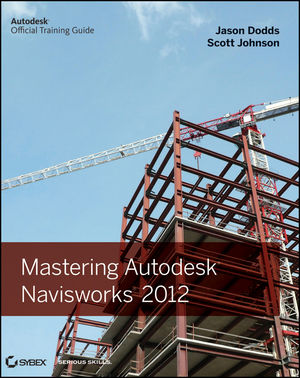
Mastering Autodesk Navisworks 2012

As I just wrote about Navisworks concepts yesterday. I should mention a great new source of information on the product. Wiley/Sybex just published the hard work of two Autodesk Navisworks guys, Jason Dodds and Scott Johnson. Naturally there is a host of people involved in getting a book finished but the guy they relied on to check their claims and recommendations is Michael Smith, their technical editor.


Jason has been supporting Navisworks for many years as well as in his current role as Autodesk Construction Solutions Engineer. Scott also toils at Autodesk, he's a Senior Technical Account Manager. These guys both get called in to make things work. Michael works for C.W. Driver as their BIM Manager in Pasadena, CA. These three together provide the necessary depth to get a book like this finished.

Navisworks can be learned pretty quickly, but it takes some time behind the wheel to really master it. As with anything you tend to learn enough to get by and probably don't really dig deeper. This book provides practical examples throughout in "Real World Scenarios" (a part of the Wiley/Sybex Mastering series format).

There is no shortage of settings in Navisworks and fortunately the guys took enough time to dig into even some of the more arcane stuff, with an eye toward what you are likely to need most of the time. For example in Chapter 4 there is a bit more than page dedicated to the subtlety of exporting from Revit with one option checked or not (Convert element Properties). Unchecked there are six properties exported and checked there are 18...that's just for a roof element.

You can read the Table of Contents and there are three sample chapter excerpts in PDF format; Chapter 2, Chapter 3 and Chapter 4. It's also available as a EPUB E-Book and Adobe E-Book. Here's the table of contents so you can review it directly. There's 456 pages from inside the cover to the back, including the index etc.

Table of Contents
    Chapter 1: Getting to know Navisworks.

    Chapter 2: Bringing it all together: Files and File Types.

    Chapter 3: Moving around the Model.

    Chapter 4: Climbing the Selection Tree.

    Chapter 5: Model Snap Shots: Sections, Viewpoints and Animations.

    Chapter 6: Documenting Projects.

    Chapter 7: 4D Sequencing with TimeLiner.

    Chapter 8: Clash Detection.

    Chapter 9: Creating Visualizations with Navisworks.

    Chapter 10: Animating Objects.

    Chapter 11: Give Objects Life and Action with Scripter.

    Chapter 12: Collaborating Outside of Navisworks.

    Chapter 13: Other Useful Navisworks Tools.
Some other Links
Book Description
Author Information
Supporting Files

If you are a Navisworks person you'll probably want this in your collection, check it out!!

Thursday, September 1, 2011

Quick Tip - Trim to Corner to Join

The Trim/Extend to Corner tool is obvious right? Pick two walls (or pipes, ducts, lines..) and you'll get two connected elements that form a corner. Would you think to use it to join two elements that are aligned but not connected? Try it, you'll like it!

Before and After...


Navisworks File Formats

When I first started using Navisworks I found the explanation for how the three file types interact a bit awkward. I suppose it was just the language used at the time or perhaps something else, can't recall now. I did latch on to my own notion of what they mean and ultimately it's helped me to explain it to others.

There are three file extensions used .NWF, NWD, and NWC. I find it useful to describe or think of them this way.
    NWF = Navisworks "Working File"

    NWD - NavisWorks "Delivered or PublisheD File" (emphasis on the D)
    NWC = NavisWorks "Cache or Captured" File
NWF = This file is your day to day file, your working file. You append (Xref/Link/Import) other files that contain the information you are trying to compile into a virtual Building Model.

NWD - This file is the result of "binding" all the data that you can see in the NWF file as well as any things you  did to the way the model looks, like changing color or applying materials or adding lights etc. It's the file you can send to a client/owner or other team member to examine. You won't have to worry about them not having what they need to review the model. If you send them the NWF you'll have to make sure you send everything that is imported into it. Just Publish to NWD via the Output ribbon tab.

NWC - This is a special format that is used when an application's own format is not natively supported or acceptable to Navisworks, like Revit. Either the source application has an exporter, like for Revit, or Navisworks creates a .NWC file itself, after reading the source file you've chosen to Append.

Navisworks can load a lot of file formats directly.


You'll get pretty familiar with this format (.nwc) if you work with Revit...which if you are reading this blog...is pretty likely.

Note in the image that it possible to filter the type of files offered when you want to open or append a file. Choosing one or the other specific file type often trips people up later. They have .nwd selected and wonder where their .nwc or .nwf files have gone. Scratching of heads...and then, "oh right!". The bottom option is at least a bit easier on you because all three types are "acceptable".