I wrote about the enhancements to the existing View Reference feature in March when the software first was released.
I didn't mention this other little goody, for people working inside Revit. If you double click on the view reference family Revit will open the view! If you export to DWF and export all the sheets to the same file you'll find they behave just like other annotation for views, CTRL + Click will open the other sheet/view.
Showing posts with label Revit 2013. Show all posts
Showing posts with label Revit 2013. Show all posts
Friday, May 18, 2012

Thursday, May 17, 2012
Selecting Multiple Saved Selection Sets
Sibilance! I used to work for Syracuse Scenery & Stage Lighting, Co. in Syracuse, NY. It was fun when I had to introduce myself formally starting with, "Hi, I'm Steve Stafford with...". The title of this post reminded me of that, sorry! I was going to lead into it with Dept. of Subtle but that was too many "sssss"... it is really subtle though. Okay I'll get to it then.
Revit 2013 added Saved Selection Sets, a feature that was part of an extension for Revit Structure originally.

The concept is simple, select elements and click a button to save (top button in the image above) them as a set that can be called on later, to do something with or to them again. If that seems likely then it will come in handy. The Save button wakes up when there is something selected. The Load button wakes up after something has been saved as a selection set.

The subtle part of this is that when there are several selection sets to choose from, what if we want to do something to more than one at a time? The dialog doesn't let us select multiple saved sets. Guess we're sunk.
[Edited 5/18/2012 - Gabe pointed out in a comment that CTRL isn't necessary, just running the tool again by clicking Load will allow us to add another selection set, cool! Thanks Gabe! - Disregard the following section]
It doesn't look like it will work but using the CTRL key does work, just not inside the dialog. The trick to this is selecting one and clicking OK to leave the dialog. Then press CTRL and click the Load button again (middle button in the first image), select another saved set, click OK.
Now we've got two saved selection sets selected again. It's easy when you know how!
Revit 2013 added Saved Selection Sets, a feature that was part of an extension for Revit Structure originally.

The concept is simple, select elements and click a button to save (top button in the image above) them as a set that can be called on later, to do something with or to them again. If that seems likely then it will come in handy. The Save button wakes up when there is something selected. The Load button wakes up after something has been saved as a selection set.

The subtle part of this is that when there are several selection sets to choose from, what if we want to do something to more than one at a time? The dialog doesn't let us select multiple saved sets. Guess we're sunk.
[Edited 5/18/2012 - Gabe pointed out in a comment that CTRL isn't necessary, just running the tool again by clicking Load will allow us to add another selection set, cool! Thanks Gabe! - Disregard the following section]
Now we've got two saved selection sets selected again. It's easy when you know how!
Tuesday, May 15, 2012
Revit 2013 - View Types
It is now possible to create new view types for all views except for area plans and sheet. This means you can create your own versions of floor plans according to discipline or perhaps design phase. We've been able to do this with sections, elevations and detail views for some time. As Revit's features have been merged into the new Building Design Suite "Revit" it became apparent that putting all the tools in one box created some curious view, view template and discipline control issues that had to be sorted out, thus being able to create view types for more views was born.
Further, views can be tied to view templates and have changes to a view template take effect immediately in a view or many views. We can apply a view template like before, just to make a change or we can assign a view template to the view so that it will alter the view without the past extra step of applying the view template. This is the typical assumed behavior that most people where surprised to learn did not happen in the past.
One curious thing that is documented at the WikiHelp site regarding these new view types, changing a view from one type to another does not actually apply the view template change that is assigned (if any) to the view. It is an instance parameter so it's an extra step you've got to take to make sure the view has the correct template assigned.
If you use the Apply View template option on a view assigned to view template already you'll get this message.

It's confirming that you really want to apply a different template's settings to the view. It also says that the only properties that will be altered are those that aren't in conflict with the other template. Hopefully the swapping of view types won't occur much after creating them initially and getting this sorted out. If you do find yourself needing to swap them around, just remember to check the view template assignment.
Tip: They've added View Template to the available fields in View Lists (schedule) so it can be managed there too.
Further, views can be tied to view templates and have changes to a view template take effect immediately in a view or many views. We can apply a view template like before, just to make a change or we can assign a view template to the view so that it will alter the view without the past extra step of applying the view template. This is the typical assumed behavior that most people where surprised to learn did not happen in the past.
One curious thing that is documented at the WikiHelp site regarding these new view types, changing a view from one type to another does not actually apply the view template change that is assigned (if any) to the view. It is an instance parameter so it's an extra step you've got to take to make sure the view has the correct template assigned.
If you use the Apply View template option on a view assigned to view template already you'll get this message.

It's confirming that you really want to apply a different template's settings to the view. It also says that the only properties that will be altered are those that aren't in conflict with the other template. Hopefully the swapping of view types won't occur much after creating them initially and getting this sorted out. If you do find yourself needing to swap them around, just remember to check the view template assignment.
Tip: They've added View Template to the available fields in View Lists (schedule) so it can be managed there too.
Thursday, May 3, 2012
Building Design Suite Installation Readme
If you are preparing for installing the 2013 Revit products via the Building Design Suites then you might want to start with the System Requirements PDF documents for each version.
Standard
Premium
Ultimate
You'll also want to read the Installation Overview and FAQ
Standard
Premium
Ultimate
You'll also want to read the Installation Overview and FAQ
Revit 2013 - Repeat and Divide Subtlety
For people experimenting with these new concepts and feature... I picked this item up recently.
If you are trying to make things work and running into problems make sure the Adaptive Component (AC) is hosted on nodes of a divided curve or divided surface. It can easily appear like its hosted correctly, but if you look closer you may find it is actually hosted to the curve, not the node. Also, if your AC family contains any Shape handles points, then it won’t repeat. All adaptive points in a family must be Placement points, not Shape Handle points or Reference points.
Read Andy's recent post about experimenting with them.
If you are trying to make things work and running into problems make sure the Adaptive Component (AC) is hosted on nodes of a divided curve or divided surface. It can easily appear like its hosted correctly, but if you look closer you may find it is actually hosted to the curve, not the node. Also, if your AC family contains any Shape handles points, then it won’t repeat. All adaptive points in a family must be Placement points, not Shape Handle points or Reference points.
Read Andy's recent post about experimenting with them.
Friday, April 13, 2012
Revit 2013 Downloads - Please Hold
Open the floodgates. People trying to download 2013 products are overwhelming the resources at Autodesk. A visit to the subscription site now offers this apology.

What's that over there? A bird? (clicking download while you are distracted...) no... I guess not.

What's that over there? A bird? (clicking download while you are distracted...) no... I guess not.
Tuesday, April 3, 2012
Revit 2013 - Content Folders
Following on yesterday's post regarding Doors and Openings, Daniel Stine wrote to mention that the opening families that we used to find in the door folder along with other doors are now in a new folder called Openings.

The opening families are still assigned to the category Generic Model. That was done purposely so they don't show up in door or window category schedules. It is fairly common practice here in the USA anyway to exclude them. This was more appropriate in the past before the introduction of Filters. Perhaps it would be better if these openings were part of the category that fit their behavior now. We could use filters to exclude them just as easily with more graphic control as well.
The "new" version of Revit called...Revit (secret code name "One Box", not so secret now though?) has created some new conditions for content. First you'll find some folders that include sub-folders for Architectural versus MEP.

Revit MEP users are used to all the electrical content being located under a single folder and then broken down by usage. Now we'll find Electrical and Lighting and these are further broken down by Architectural and MEP. Just when you thought you knew where stuff is..."Who Moved my Cheese?"

As for other subtle library changes we will now find some categories separated by Internal and External, interesting language choice versus Interior and Exterior.

Perhaps these new terms have better equivalent translations in other languages?
Just a few things to look forward to!

The opening families are still assigned to the category Generic Model. That was done purposely so they don't show up in door or window category schedules. It is fairly common practice here in the USA anyway to exclude them. This was more appropriate in the past before the introduction of Filters. Perhaps it would be better if these openings were part of the category that fit their behavior now. We could use filters to exclude them just as easily with more graphic control as well.
The "new" version of Revit called...Revit (secret code name "One Box", not so secret now though?) has created some new conditions for content. First you'll find some folders that include sub-folders for Architectural versus MEP.

Revit MEP users are used to all the electrical content being located under a single folder and then broken down by usage. Now we'll find Electrical and Lighting and these are further broken down by Architectural and MEP. Just when you thought you knew where stuff is..."Who Moved my Cheese?"

As for other subtle library changes we will now find some categories separated by Internal and External, interesting language choice versus Interior and Exterior.

Perhaps these new terms have better equivalent translations in other languages?
Just a few things to look forward to!
Friday, March 30, 2012
Revit 2013 - Sunshine
I enjoyed the bit where Scott Davis showed a single day solar study last night during the SCRUG (South Coast Revit User Group) meeting. If we advance a single frame at a time it permits us to capture a view with the sun in the view, like this.
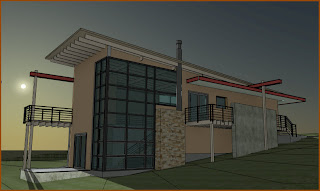
It was funny when Randy jokingly offered a really specific time of day to use and the sun in Scott's view ended up exactly behind the top of the fireplace flue/chimney. It's was a happy accident that I couldn't replicate here.

It was funny when Randy jokingly offered a really specific time of day to use and the sun in Scott's view ended up exactly behind the top of the fireplace flue/chimney. It's was a happy accident that I couldn't replicate here.
Revit 2013 - View References
If this was a snake I'd be writhing on the ground with a snake bite. If you are familiar with Matchlines and their related View Reference concept then you already have a sense of what this can do. You start the View Reference tool with this little sneaky button.

Then you get this on the Ribbon

Choose a view type and then a target view from the list of available views and you get something like this that you can place at the end of your note or possibly inline with some careful spaces inserted.

How about spending Two Minutes with View References?

Then you get this on the Ribbon

Choose a view type and then a target view from the list of available views and you get something like this that you can place at the end of your note or possibly inline with some careful spaces inserted.

How about spending Two Minutes with View References?
Revit 2013 - Diameter Dimension
It might seem surprising to someone unfamiliar with Revit but it has not had a diameter dimension option for twelve years, since the beginning, only a radius (radial). That said, it has never prevented me from getting something done, just inconvenient at times.
In my view, any hole you make (or need to describe) with a drill is better dimensioned with a diameter value, you buy drill bits and core drill sizes based on diameter. More often than not I used text and a leader to "point" at a hole and say what diameter it needed to be. I didn't need a dimension for that.
Now for walls that are curving (or soffits or ceilings etc), those are better laid out with the radius. Give a contractor the diameter and they just have to divide by two anyway. In fabrication I used diameter dimensioning all the time. In construction on site, very seldom...unless selecting a drill bit.
So no diameter dimension for many years, but no more...Now it does!
One place I will be very grateful for the diameter dimension is in the family editor. What was dreadful was defining pipe diameters there without it (or round duct fittings for that matter).
In my view, any hole you make (or need to describe) with a drill is better dimensioned with a diameter value, you buy drill bits and core drill sizes based on diameter. More often than not I used text and a leader to "point" at a hole and say what diameter it needed to be. I didn't need a dimension for that.
Now for walls that are curving (or soffits or ceilings etc), those are better laid out with the radius. Give a contractor the diameter and they just have to divide by two anyway. In fabrication I used diameter dimensioning all the time. In construction on site, very seldom...unless selecting a drill bit.
So no diameter dimension for many years, but no more...Now it does!
One place I will be very grateful for the diameter dimension is in the family editor. What was dreadful was defining pipe diameters there without it (or round duct fittings for that matter).
Thursday, March 29, 2012
Kiwi Codes - Project Browser for 2013
Okay gang, check out Phillip's latest add-on for Revit! An alternative Project Browser, can you say drag and drop folder like organization? Sure you can...
and much much more! Nice work Phillip!
and much much more! Nice work Phillip!
Wednesday, March 28, 2012
Revit 2013 Materials
Daniel Stine has undertaken the task of writing about the new materials features and reorganization in Revit 2013. It's in the form of an article at AECBytes, check it out before you dig in too deeply, might help?
Tuesday, March 27, 2012
Revit 2013 - More Resizable Goodness
Following in my earlier subtle theme, more dialogs have had a visit from the "Resizable elf". At a minimum Filters and View Templates have been added to the list of dialog boxes that not sizing challenged. Every little bit helps!
Revit 2013 - Tag on Placement
Another subtle but important feature refinement is that the Tag on Placement feature is "off" by default now. It turns out that this concept can generate some heated conversations. The general consensus, especially with Revit MEP users perspective is that we are better off leaving the tagging task for later...thus "off" by default. I know quite a few users that will sigh in relief.
Revit 2013 - Double Clicking
Here's a couple subtle features:
Double Click Middle Button in a view = Zoom to Fit
Double Click on a component Family = Edit the Family (open in the family editor)
Double Click Middle Button in a view = Zoom to Fit
Double Click on a component Family = Edit the Family (open in the family editor)
Revit 2013 Gives a Way to Sweeter Suite
I wrote a post (September 2008) about wanting a single version of Revit. I took a poll (October 2008) of my readers and overwhelming they said they wanted a combined version of Revit. The first step toward this was last years Building Design Suites where we could, with one "product", have access to all versions. It still requires a separate installation (managed installation) for each version but one product code or license is associated with all of them.
The release of 2013 has taken that last step to completing this dream, with a new version of Revit called...wait for it... Revit! (code named "One Box" for awhile anyway). This means we can install one software application and have access to all of the features that are part of the discipline specific versions. David Light's blog post regarding the new features offers an image of the dialog that allows us to choose which features of the various disciplines we'd like to include on our User Interface as we work.

Halleluja!!
The release of 2013 has taken that last step to completing this dream, with a new version of Revit called...wait for it... Revit! (code named "One Box" for awhile anyway). This means we can install one software application and have access to all of the features that are part of the discipline specific versions. David Light's blog post regarding the new features offers an image of the dialog that allows us to choose which features of the various disciplines we'd like to include on our User Interface as we work.
Halleluja!!
Revit 2013 Information
Autodesk is hosting a media day in San Francisco today. They've invited over 100 media people to see what's new and in store for us. Sadly I'm not one of those people this time around. David Light is however and I've been following his tweets and watching the morning presentation online via their Facebook Facecast. I'm not certain if the Facecast will resume after lunch or not.

David published the "What's New in 2013" blog post that he's been working on for a few days this morning during the Facecast. Be sure to check it out, he's provided some initial thoughts on the release as well as some insight into most of the major features.
There is a blogger media event tomorrow so look for various bloggers to add to the available information overload. I won't be attending it as I have a prior commitment with a client for the next few days.
Brian Mackey has invited people to attend a free webcast where he discusses his favorite 2013 features. The calendar link he provided doesn't seem to provide any details yet...so keep checking back to see if it's updated.
Lastly, there have been a few posts and tweets that it is possible to download the stand-alone versions of Revit 2013 (discipline specific). I don't see 2013 products listed for my account yet (via subscription). Well I do see the RST 2013 as available but not the others yet. I guess that will all get sorted out as wrinkles get ironed out.
David published the "What's New in 2013" blog post that he's been working on for a few days this morning during the Facecast. Be sure to check it out, he's provided some initial thoughts on the release as well as some insight into most of the major features.
There is a blogger media event tomorrow so look for various bloggers to add to the available information overload. I won't be attending it as I have a prior commitment with a client for the next few days.
Brian Mackey has invited people to attend a free webcast where he discusses his favorite 2013 features. The calendar link he provided doesn't seem to provide any details yet...so keep checking back to see if it's updated.
Lastly, there have been a few posts and tweets that it is possible to download the stand-alone versions of Revit 2013 (discipline specific). I don't see 2013 products listed for my account yet (via subscription). Well I do see the RST 2013 as available but not the others yet. I guess that will all get sorted out as wrinkles get ironed out.
Subscribe to:
Posts (Atom)